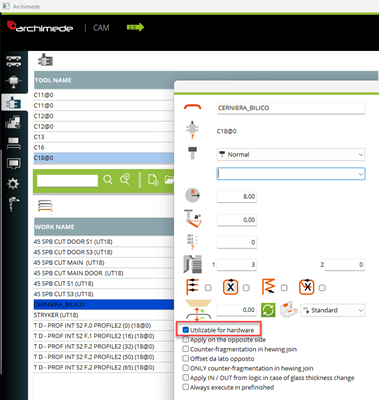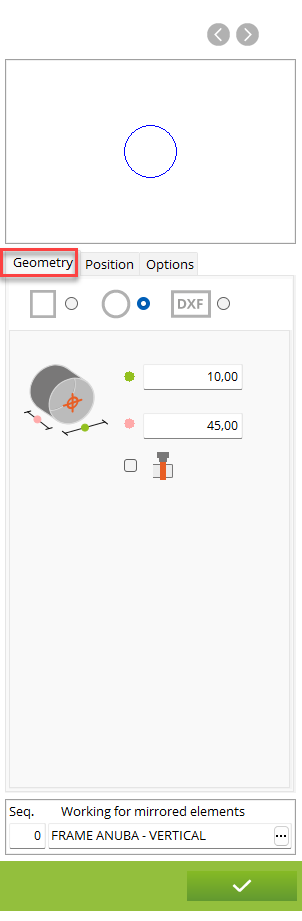



1. Workings preview. Click to see 3D preview for defined workings. If you open hardware element from the hardware preview (from the CAD design or ERP order position) you will see the positions of the workings on frame and sash with the final shape
2. Selected shape of the working between pocket, circle or from dxf
3. Define dimensions (for example diameter and depth)
4. Add the element thickness to the depth of the working. If option is selected, the vertical milling will de done through entire element. If we set depth of the working on 5mm and select this checkbox, the working will be done through entire thicknes + 5mm more
5. Select the working on mirrored elements (enter also the sequnece if different as of main working)
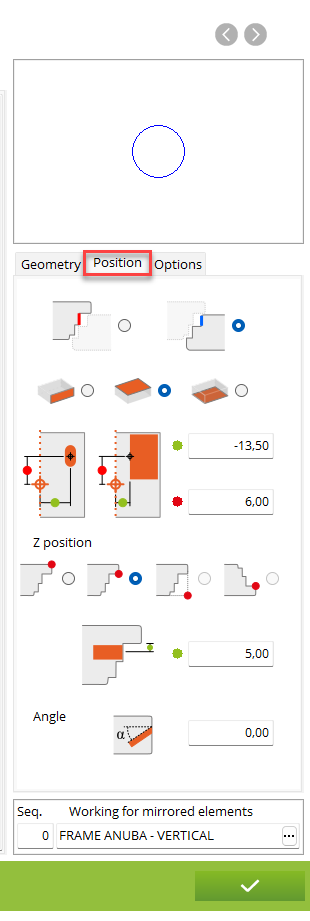
6. Select if perform working on sash or on frame
7. Select if horizontal working / vertical from top / vertical from bottom
8. Apply offset or working to move the working more inside/outside of sash (by green field and set positive/negative value). Move the center or working more up/down from the reference point (by red field and set positive/negative value)
9. Set the Z reference point of the center of horizontal working. Select between top sash edge / top sash edge skipping rebate value (set for external sash profile), bottom sash edge, bottom sash edge skipping rebate value
10. Additional Z axis offset of the working
2. Selected shape of the working between pocket, circle or from dxf
3. Define dimensions (for example diameter and depth)
4. Add the element thickness to the depth of the working. If option is selected, the vertical milling will de done through entire element. If we set depth of the working on 5mm and select this checkbox, the working will be done through entire thicknes + 5mm more
5. Select the working on mirrored elements (enter also the sequnece if different as of main working)
6. Select if perform working on sash or on frame
7. Select if horizontal working / vertical from top / vertical from bottom
8. Apply offset or working to move the working more inside/outside of sash (by green field and set positive/negative value). Move the center or working more up/down from the reference point (by red field and set positive/negative value)
9. Set the Z reference point of the center of horizontal working. Select between top sash edge / top sash edge skipping rebate value (set for external sash profile), bottom sash edge, bottom sash edge skipping rebate value
10. Additional Z axis offset of the working
11. Working angle
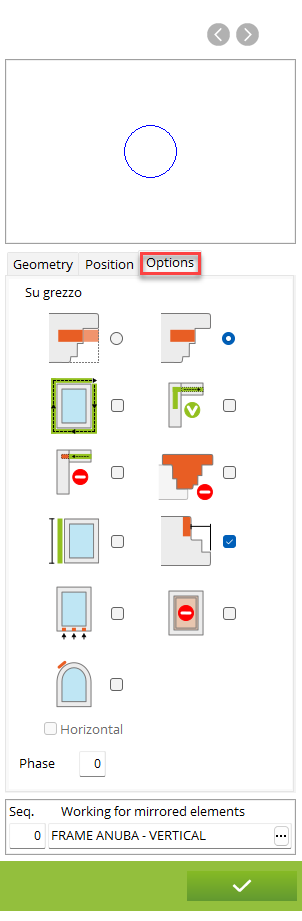
12. Select if apply working on raw piece or on final shape of profile - when selected raw piece than the working geometry with be calculated from the scrap edge
13. Squaring - Apply this working during the Squaring program
14. Extend working on the following element
15. Don't continue working on the following element
16. Do not assign the work to the added-post
17. Apply to whole side - it allows you to obtain a working as long as the side
18. Use hardware application path to find the element on wich apply hardware - Use the first rebat geometry to find the element to which the working must be applied
19. Water pull-out working from the external side of piece
20. Do not assign the working to the sillar
21. Straight working even on arc - This option allows you to have a working that does not follow the shape of the window
22. Phase of the working. For some kind of machines, you can perform here the phase when the working should be done
12. Select if apply working on raw piece or on final shape of profile - when selected raw piece than the working geometry with be calculated from the scrap edge
13. Squaring - Apply this working during the Squaring program
14. Extend working on the following element
15. Don't continue working on the following element
16. Do not assign the work to the added-post
17. Apply to whole side - it allows you to obtain a working as long as the side
18. Use hardware application path to find the element on wich apply hardware - Use the first rebat geometry to find the element to which the working must be applied
19. Water pull-out working from the external side of piece
20. Do not assign the working to the sillar
21. Straight working even on arc - This option allows you to have a working that does not follow the shape of the window
22. Phase of the working. For some kind of machines, you can perform here the phase when the working should be done


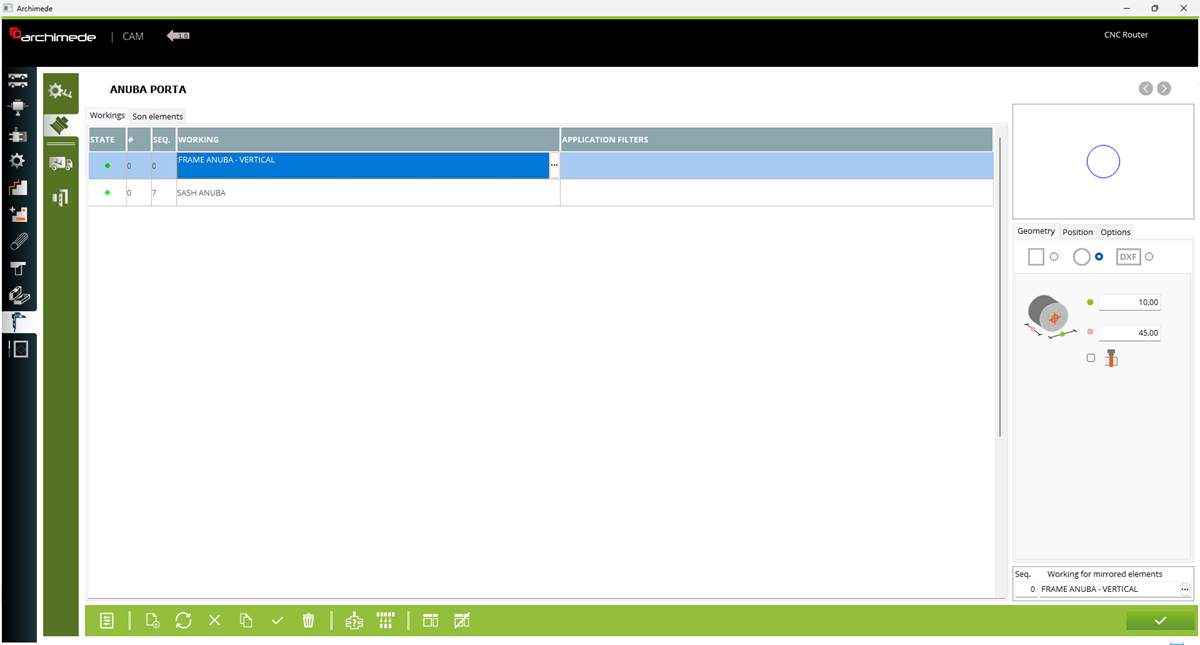
1. Name of selected hardware element
2. The workings list for selected element
3. The list of son elements. With this part we can assign elements, which will be loaded together with current element
4. Working state - we can disable the working, mark as has to be checked or leave eneble
5. Sequnece on the list. Set lower value to see the working more up on the list
6. Workings sequence (if the workings are in the same category, the working with lower sequence will be done before the others)
7. The working selected by click on '...' and selected from the list of workings dedicated for hardware.
8. Filters - by double click on this field we can apply filters like by loaded accessories, selected special working data, by range of thickness, section etc.
9. The another way to open filters. You can also hide filters by click on this button again and double click on field from point 8
10. Assign new working
11. Copy current working
12. Remove selected working
13. Open tool and working register of selected working
14. Show the father element if the current element is the son element
15. Working parapeters. Each option will be described below
2. The workings list for selected element
3. The list of son elements. With this part we can assign elements, which will be loaded together with current element
4. Working state - we can disable the working, mark as has to be checked or leave eneble
5. Sequnece on the list. Set lower value to see the working more up on the list
6. Workings sequence (if the workings are in the same category, the working with lower sequence will be done before the others)
7. The working selected by click on '...' and selected from the list of workings dedicated for hardware.
8. Filters - by double click on this field we can apply filters like by loaded accessories, selected special working data, by range of thickness, section etc.
9. The another way to open filters. You can also hide filters by click on this button again and double click on field from point 8
10. Assign new working
11. Copy current working
12. Remove selected working
13. Open tool and working register of selected working
14. Show the father element if the current element is the son element
15. Working parapeters. Each option will be described below