

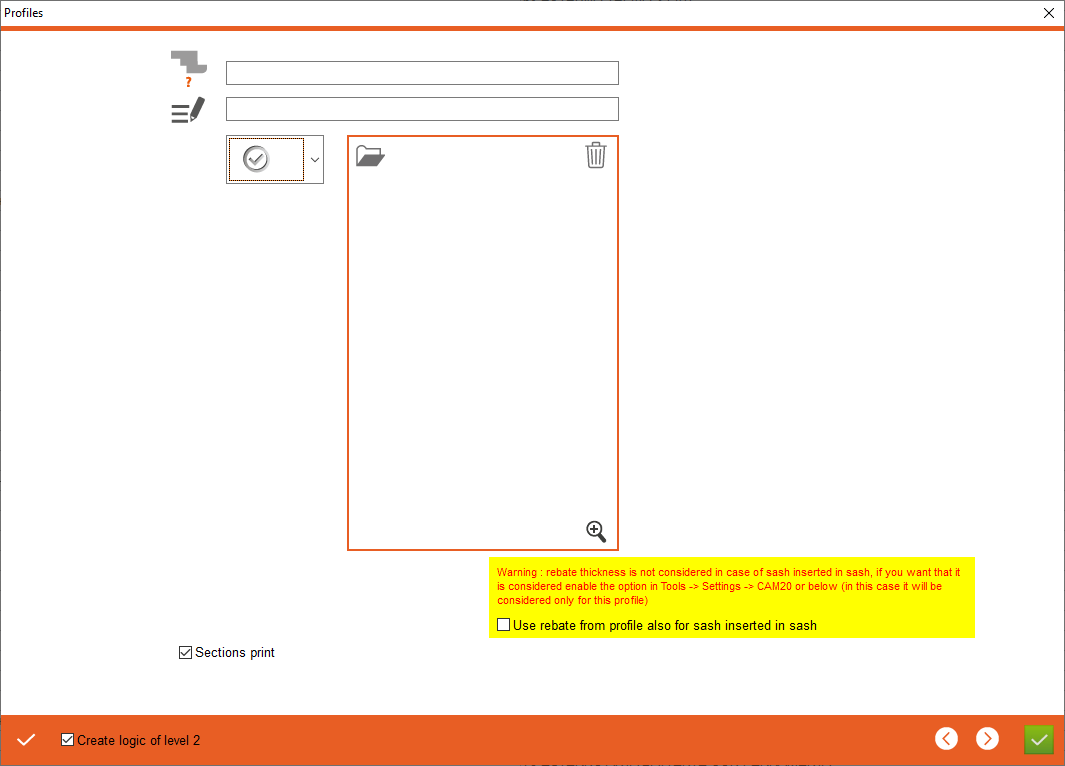


1. Profile name - Enter the profile name
2. Profile description - Enter profile description
3. Profile type - Select profile type, the currently selected profile is for counter profile, external frame and other when we don't need to set other option. If user want to choose other profile please click on drawing or on point 1
4. Apply - Apply the changes, after clicking on the "Apply" button, additional tabs will appear for entering counter profiles and overlaps
2. Profile description - Enter profile description
3. Profile type - Select profile type, the currently selected profile is for counter profile, external frame and other when we don't need to set other option. If user want to choose other profile please click on drawing or on point 1
4. Apply - Apply the changes, after clicking on the "Apply" button, additional tabs will appear for entering counter profiles and overlaps

5. Create logic of level 2 - If checked, it will create our profile logic in the CAM2.0 section
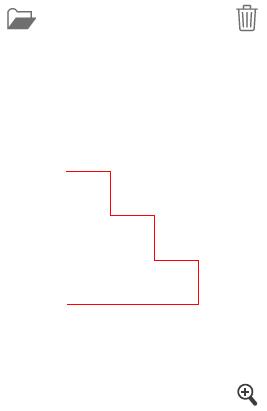
6. Open a drawing - Select profile drawing
7. Delete a drawing
8. Show drawing - Opens drawing preview
6. Open a drawing - Select profile drawing
7. Delete a drawing
8. Show drawing - Opens drawing preview

This is the place in the program where the user defines the profile values