


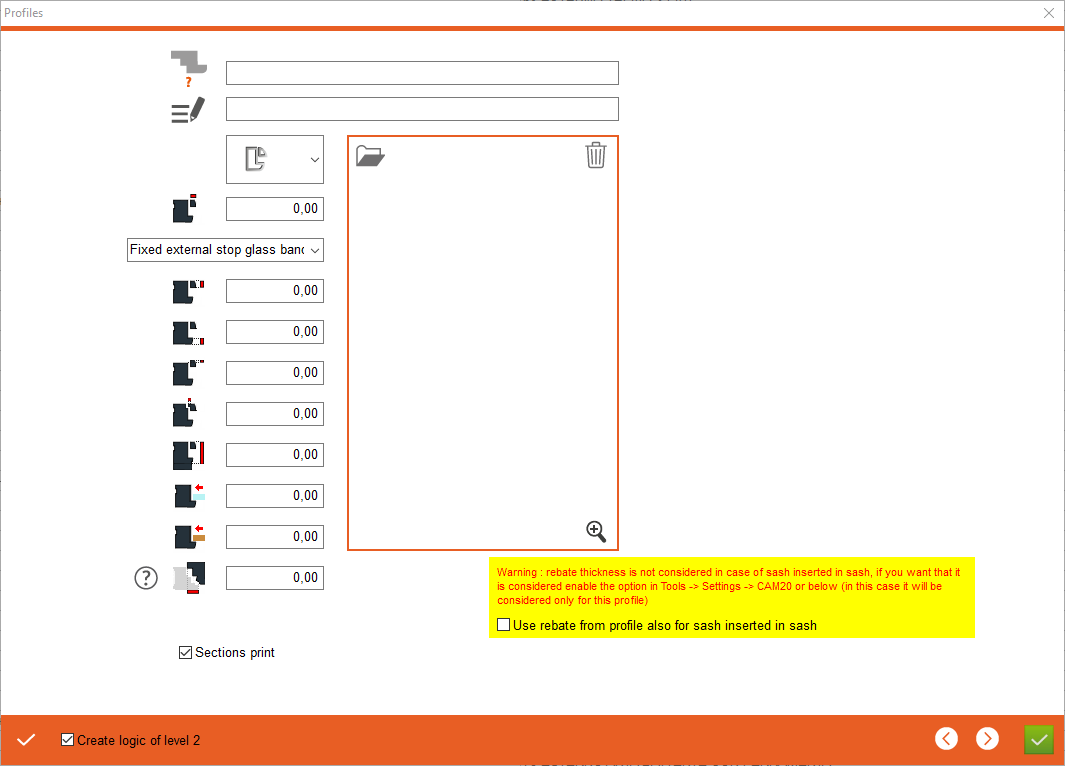


1. Profile name - Enter the profile name
2. Profile description - Enter profile description
3. Profile type - Select profile type, the currently selected profile is the external profile opening to the inside, which enables you to enter the values for this profile type below. If user want to choose other profile please click on drawing or on point 1
4. Stop glas band section - Entering the section values of the glazing bead
5. Selecting the type of fixed glazing bead - currently selected fixed glazing bead on the external side
6. Stop glass band thickness - The value is given if the glazing bead is to be of a "fixed" thickness without the possibility of changing it according to the thickness of the glass
7. Fixed stop glass band thickness - Value for the thickness of the fixed glazing bead
8. Z overlap stop glass band - Value of the z-axis offset of the glazing bead from the top of the profile
9. Y overlap stop glass band - Value of the y-axis offset of the glazing bead from the top of the profile
2. Profile description - Enter profile description
3. Profile type - Select profile type, the currently selected profile is the external profile opening to the inside, which enables you to enter the values for this profile type below. If user want to choose other profile please click on drawing or on point 1
4. Stop glas band section - Entering the section values of the glazing bead
5. Selecting the type of fixed glazing bead - currently selected fixed glazing bead on the external side
6. Stop glass band thickness - The value is given if the glazing bead is to be of a "fixed" thickness without the possibility of changing it according to the thickness of the glass
7. Fixed stop glass band thickness - Value for the thickness of the fixed glazing bead
8. Z overlap stop glass band - Value of the z-axis offset of the glazing bead from the top of the profile
9. Y overlap stop glass band - Value of the y-axis offset of the glazing bead from the top of the profile



10. Reference thickness - Profile reference value, value is added in specific situations
11. Increase glass place - The value by which the glass has to be extended to be calculated correctly for this profile
12. Increase sillar place - The value by which the sillar has to be extended to be calculated correctly for this profile
13. Overlap for sash in sash - for the sash-in-sash module, we specify the overlap for this solution
14. Apply - Apply the changes, after clicking on the "Apply" button, additional tabs will appear for entering counter profiles and overlaps
15. Create logic of level 2 - If checked, it will create our profile logic in the CAM2.0 section
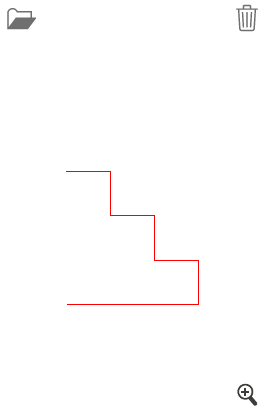
16. Open a drawing - Select profile drawing
17. Delete a drawing
18. Show drawing - Opens drawing preview
11. Increase glass place - The value by which the glass has to be extended to be calculated correctly for this profile
12. Increase sillar place - The value by which the sillar has to be extended to be calculated correctly for this profile
13. Overlap for sash in sash - for the sash-in-sash module, we specify the overlap for this solution
14. Apply - Apply the changes, after clicking on the "Apply" button, additional tabs will appear for entering counter profiles and overlaps
15. Create logic of level 2 - If checked, it will create our profile logic in the CAM2.0 section
16. Open a drawing - Select profile drawing
17. Delete a drawing
18. Show drawing - Opens drawing preview
This is the place in the program where the user defines the profile values