


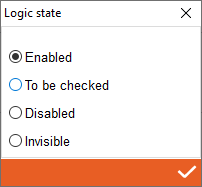
1. State - Double click to open state of working, you can set here that working is enabled (always you have that working) to be checked (colour of working is yellow and to be checked on viewer) disabled (colour of working is red and the working is disabled during on machining)
2. # - Display order in the list (does not affect processing sequences)
3. Sequence - Setting working sequences if they are in the same working category
4. Work name - Place of selection of working from the drop-down list of working
5. Kind - Kind of tool selected in tool managment
6. Tool - Tool preview
7. Element type - Working application filters for the profile. More information bellow
8. Application Filters - Working application filters for the profile. More information bellow
9. Machine phase - Place for choose machine phase
10. Image - Click on it to check the legend on how Archimede recognises it sides of individual elements
11. Drawing preview - Drawing preview with visible profile drawing and tools
12. Gear - Tab for selecting general settings, e.g. profile page, profile shape, etc.
2. # - Display order in the list (does not affect processing sequences)
3. Sequence - Setting working sequences if they are in the same working category
4. Work name - Place of selection of working from the drop-down list of working
5. Kind - Kind of tool selected in tool managment
6. Tool - Tool preview
7. Element type - Working application filters for the profile. More information bellow
8. Application Filters - Working application filters for the profile. More information bellow
9. Machine phase - Place for choose machine phase
10. Image - Click on it to check the legend on how Archimede recognises it sides of individual elements
11. Drawing preview - Drawing preview with visible profile drawing and tools
12. Gear - Tab for selecting general settings, e.g. profile page, profile shape, etc.
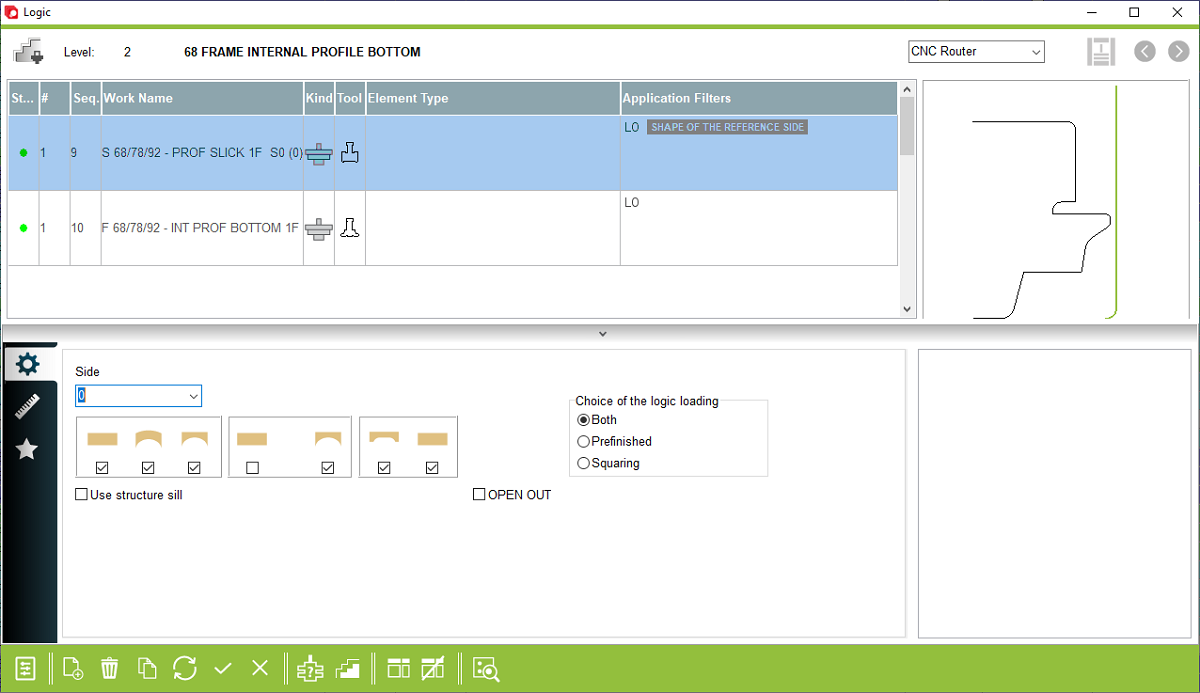


13. Linear - Dimension-related settings
14. Star - Tab for selecting the kind of settings, e.g. wood, special profile data, etc.
15. Side - Space for selecting a profile side. NOTE: When you select the applicable side, the masks for the individual side open. Different for long sides different for head sides and different for all sides
16. Filter for type of profile - Straight, arch element and straight with one side of arch
17. Shape of reference side - Working on straight side, working on curved side
18. Glazing bead and wood mask filter
19. Choice of the logic loading - Choose on which type of working you need on both, on prefinished or on squaring
20. Tools and workings managment
21. Open application filters - Open a mask of Archimede to set the logic filter for selected working
22. Profile - Open a mask of Archimede to check actual profile
23. Use structure sill - Select to werify type of sill under each stucture. Use it if type of sill filter is selected.
24. Open out - Select to werify if OPEN OUT is choosen in frame/sash configuration settings
14. Star - Tab for selecting the kind of settings, e.g. wood, special profile data, etc.
15. Side - Space for selecting a profile side. NOTE: When you select the applicable side, the masks for the individual side open. Different for long sides different for head sides and different for all sides
16. Filter for type of profile - Straight, arch element and straight with one side of arch
17. Shape of reference side - Working on straight side, working on curved side
18. Glazing bead and wood mask filter
19. Choice of the logic loading - Choose on which type of working you need on both, on prefinished or on squaring
20. Tools and workings managment
21. Open application filters - Open a mask of Archimede to set the logic filter for selected working
22. Profile - Open a mask of Archimede to check actual profile
23. Use structure sill - Select to werify type of sill under each stucture. Use it if type of sill filter is selected.
24. Open out - Select to werify if OPEN OUT is choosen in frame/sash configuration settings


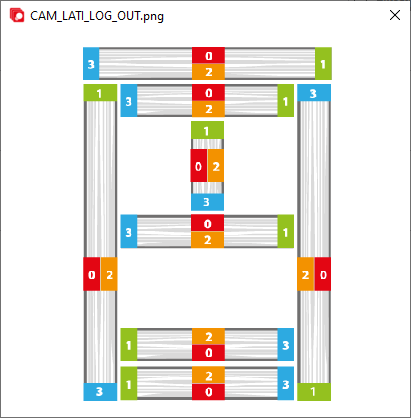


This is the place in the program where the user can filter workings according to the side to which they are to be assigned and the type of element (e.g. arched element, element with one arched side, arched ends, straight ends, etc.).