

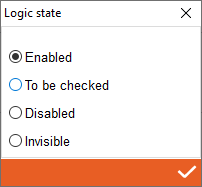
1. State - Double click to open state of workings, you can set here that working is enabled (always you have that working) to be checked (colour of working is yellow and to be checked on viewer) disabled (colour of working is red and the working is disabled during on machining)
2. # - Display order in the list (does not affect processing sequences)
3. Sequence - Setting workings sequences if they are in the same working category
4. Work name - Place of selection of workings from the drop-down list of workings
5. Kind - Kind of tool selected in tool managment
6. Tool - Tool preview
7. Element type - Workings application filters for the profile. More information bellow
8. Application Filters - Working application filters for the profile. More information bellow
9. Machine phase - Place for choose machine phase
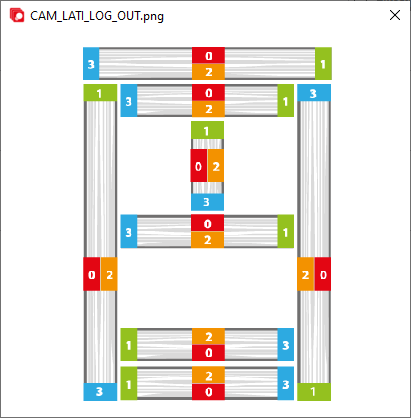
10. Image - Click on it to check the legend on how Archimede recognises it sides of individual elements
11. Drawing preview - Drawing preview with visible profile drawing and tools
2. # - Display order in the list (does not affect processing sequences)
3. Sequence - Setting workings sequences if they are in the same working category
4. Work name - Place of selection of workings from the drop-down list of workings
5. Kind - Kind of tool selected in tool managment
6. Tool - Tool preview
7. Element type - Workings application filters for the profile. More information bellow
8. Application Filters - Working application filters for the profile. More information bellow
9. Machine phase - Place for choose machine phase
10. Image - Click on it to check the legend on how Archimede recognises it sides of individual elements
11. Drawing preview - Drawing preview with visible profile drawing and tools
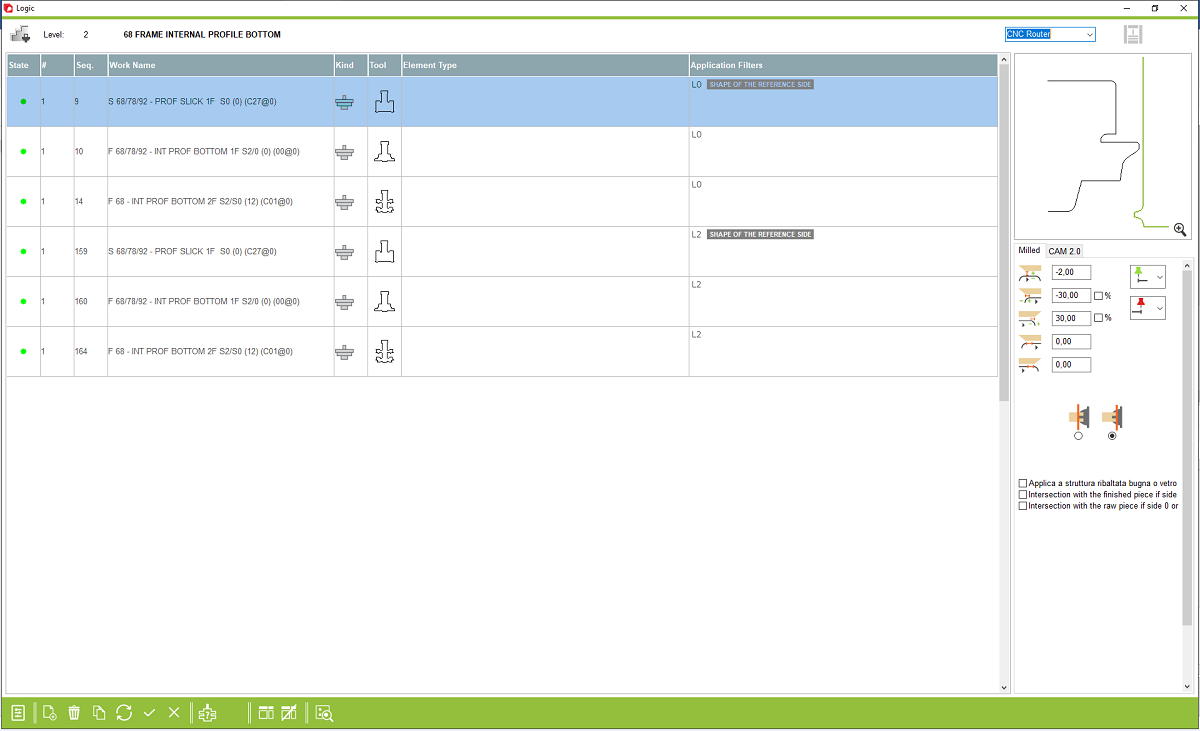


12. Offset - A place where you can change the offset for this working and this profile only. NOTE: When updated in workings, the offset will change without warning
13. Start work - A place to enter the value of how much earlier the tool should start moving. The percentage check mark indicates how much earlier or later the tool is to come out in percentage terms
14. End work - Space for entering the value of how much later the tool should go out. The percentage check mark indicates how much earlier or later the tool is to come out in percentage terms
15. Counter fragmentation IN - Setting how previously the tool has to enter with a changed working speed in order to reduce material breaking
16. Counter fragmentation OUT - Setting how much later the tool is to come out with a changed working speed to reduce material breaking
17. Consider from internal or external side of junction - Place to choose which side of the connection should be based internal or external
18. Location of tool start and end of working (if green point is start of element, if red point end of element)
19. CAM 2.0 - A place where you can change the category and speed limit for this working and this profile only. NOTE: When updated in working, the paramethrs will change without warning
20. Tools and workings managment
21. Open application filters - Open a mask of Archimede to set the logic filter for selected milling
13. Start work - A place to enter the value of how much earlier the tool should start moving. The percentage check mark indicates how much earlier or later the tool is to come out in percentage terms
14. End work - Space for entering the value of how much later the tool should go out. The percentage check mark indicates how much earlier or later the tool is to come out in percentage terms
15. Counter fragmentation IN - Setting how previously the tool has to enter with a changed working speed in order to reduce material breaking
16. Counter fragmentation OUT - Setting how much later the tool is to come out with a changed working speed to reduce material breaking
17. Consider from internal or external side of junction - Place to choose which side of the connection should be based internal or external
18. Location of tool start and end of working (if green point is start of element, if red point end of element)
19. CAM 2.0 - A place where you can change the category and speed limit for this working and this profile only. NOTE: When updated in working, the paramethrs will change without warning
20. Tools and workings managment
21. Open application filters - Open a mask of Archimede to set the logic filter for selected milling


This is the place in the program where the user adds workings to make a profile on the machine