


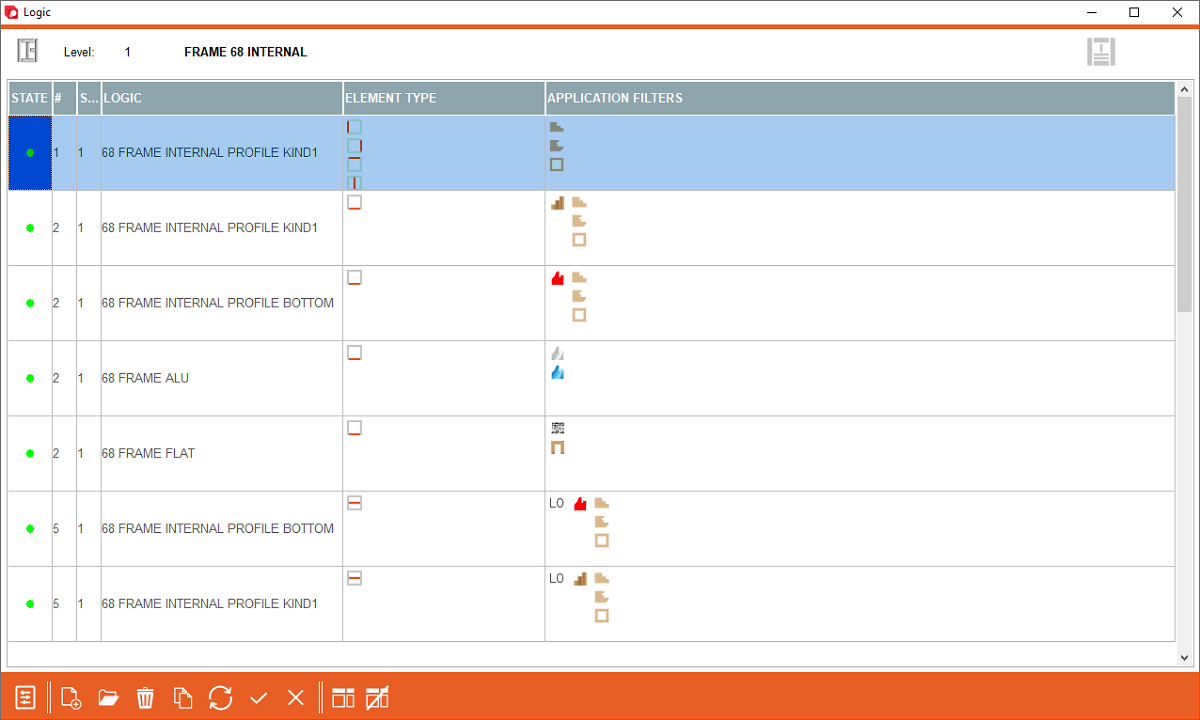
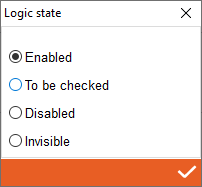
1. State - Double click to open state of profile, you can set here that profile is enabled (always you have that profile) to be checked (colour of profile is yellow and to be checked) disabled (colour of profile is red and the profile is disabled during on profile matching)
2. # - Display order in the list (does not affect profile matching sequences)
3. Sequence - Setting profile matching sequences
4. Logic - Name of profile logic to use in configuration
5. Element type - Profile application filters for the configuration.
2. # - Display order in the list (does not affect profile matching sequences)
3. Sequence - Setting profile matching sequences
4. Logic - Name of profile logic to use in configuration
5. Element type - Profile application filters for the configuration.
6. Application Filters - Profile application filters for the configuration.
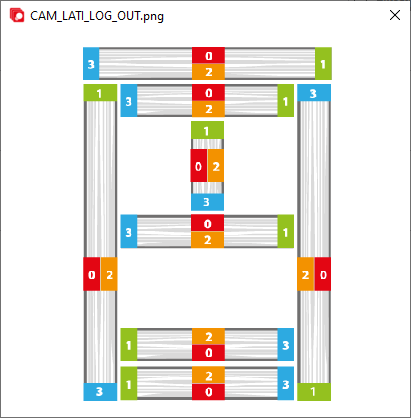
7. Image - Click on it to check the legend on how Archimede recognises it sides of individual elements
8. Open application filters - Open a mask of Archimede to set the logic filter for selected profile
9. Add a new logic - Button for add a new logic for profile aplication in configuration
10. Open Profile - Open profile logic
7. Image - Click on it to check the legend on how Archimede recognises it sides of individual elements
8. Open application filters - Open a mask of Archimede to set the logic filter for selected profile
9. Add a new logic - Button for add a new logic for profile aplication in configuration
10. Open Profile - Open profile logic


This is the place in the program where the user creates or edits internal profile families, where all the possible profiles for each structure are defined and filtered so that the program knows in which cases it should select the correct profile.