

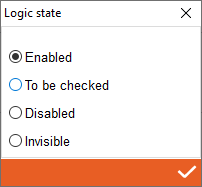
1. State - Double click to open state of workings, you can set here that working is enabled (always you have that working) to be checked (colour of working is yellow and to be checked on viewer) disabled (colour of working is red and the working is disabled during on machining)
2. # - Display order in the list (does not affect processing sequences)
3. Sequence - Setting workings sequences if they are in the same working category
4. Work name - Place of selection of workings from the drop-down list of workings
5. Kind - Kind of tool selected in tool managment
6. Tool - Tool preview
7. Element type - Workings application filters for the profile. More information bellow
8. Application Filters - Workings application filters for the profile. More information bellow
9. Machine phase - Place for choose machine phase
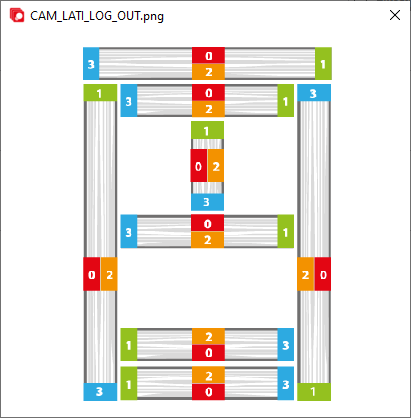
10. Image - Click on it to check the legend on how Archimede recognises it sides of individual elements
11. Drawing preview - Drawing preview with visible profile drawing and tools
12. Select spindle - A place where we can change the spindle only for that working and only for that profile. NOTE: When updated in working, the paramethrs will change without warning
2. # - Display order in the list (does not affect processing sequences)
3. Sequence - Setting workings sequences if they are in the same working category
4. Work name - Place of selection of workings from the drop-down list of workings
5. Kind - Kind of tool selected in tool managment
6. Tool - Tool preview
7. Element type - Workings application filters for the profile. More information bellow
8. Application Filters - Workings application filters for the profile. More information bellow
9. Machine phase - Place for choose machine phase
10. Image - Click on it to check the legend on how Archimede recognises it sides of individual elements
11. Drawing preview - Drawing preview with visible profile drawing and tools
12. Select spindle - A place where we can change the spindle only for that working and only for that profile. NOTE: When updated in working, the paramethrs will change without warning
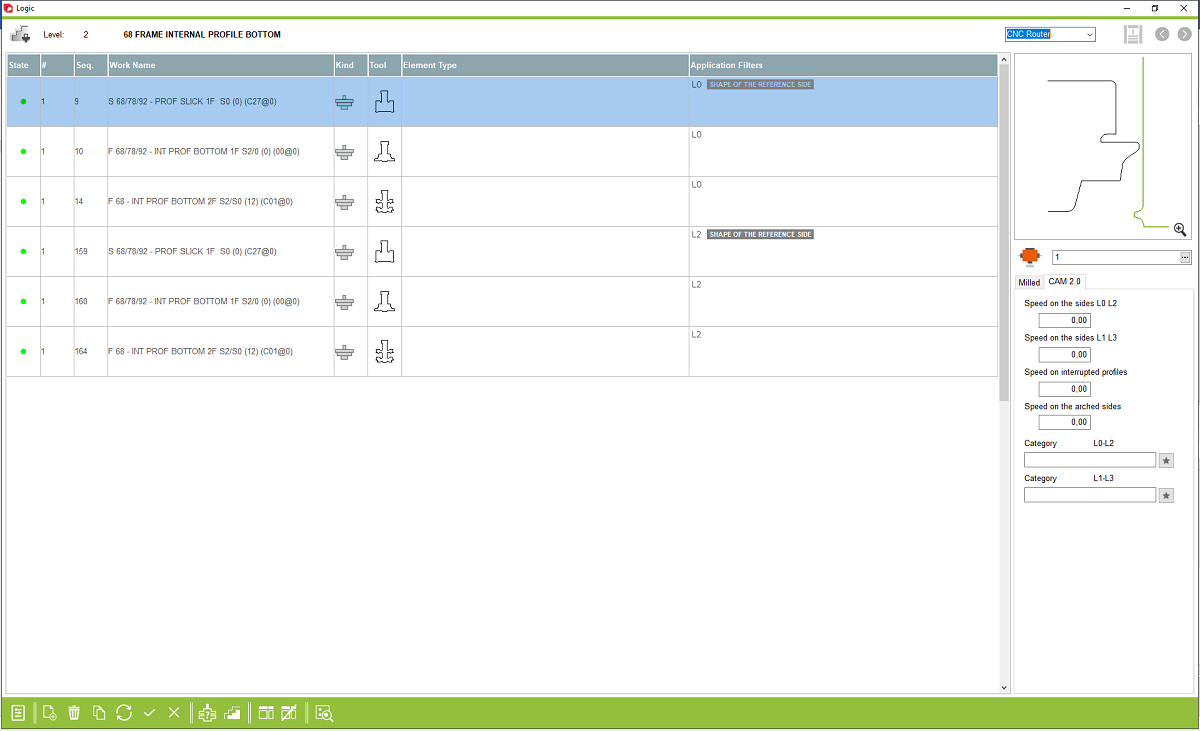


13. Milled - A place where you can change the offset option, input and output distances of the tool and others
14. Speed on the sides L0 L2 - Space for entering the value of speed tool for the side L0 L2. NOTE: When updated in working, the paramethrs will change without warning
15. Speed on the sides L1 L3 - Space for entering the value of speed tool for the side L1 L3. NOTE: When updated in working, the paramethrs will change without warning
16. Speed on interrupted profiles - Space for entering the speed of the anti-lifting system. NOTE: When updated in working, the paramethrs will change without warning
17. Speed on the arched sides - Space for entering the speed on the arched side of element. NOTE: When updated in working, the paramethrs will change without warning
18. Category L0 L2 - Space for category entry for side L0 L2. NOTE: When updated in working, the paramethrs will change without warning
19. Category L1 L3 - Space for category entry for side L1 L3. NOTE: When updated in working, the paramethrs will change without warning
20. Tools and workings managment
21. Open application filters - Open a mask of Archimede to set the logic filter for selected working
22. Profile - Open a mask of Archimede to check actual profile
14. Speed on the sides L0 L2 - Space for entering the value of speed tool for the side L0 L2. NOTE: When updated in working, the paramethrs will change without warning
15. Speed on the sides L1 L3 - Space for entering the value of speed tool for the side L1 L3. NOTE: When updated in working, the paramethrs will change without warning
16. Speed on interrupted profiles - Space for entering the speed of the anti-lifting system. NOTE: When updated in working, the paramethrs will change without warning
17. Speed on the arched sides - Space for entering the speed on the arched side of element. NOTE: When updated in working, the paramethrs will change without warning
18. Category L0 L2 - Space for category entry for side L0 L2. NOTE: When updated in working, the paramethrs will change without warning
19. Category L1 L3 - Space for category entry for side L1 L3. NOTE: When updated in working, the paramethrs will change without warning
20. Tools and workings managment
21. Open application filters - Open a mask of Archimede to set the logic filter for selected working
22. Profile - Open a mask of Archimede to check actual profile


This is the place in the program where the user can change the category and feed speeds for machining in a profile, but the change occurs only for this profile and can be changed automatically without warning when updating the parameters in the workings