


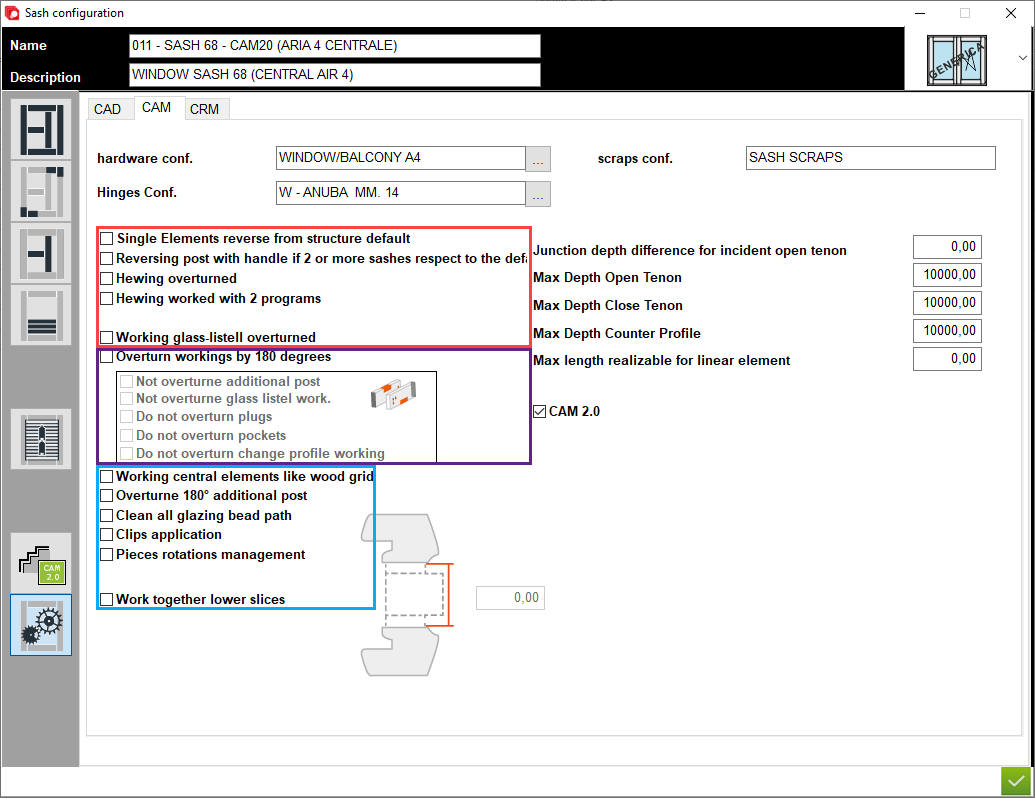


1. Name of configuration - A place for the user to enter a configuration name
2. Description of configuration - A place for the user to enter a configuration description
3. Type of window - A place to set the type of window (for example: normal, sliding sash or HS portal)
4. Definition of element - This is the place in the program where sections and thickness are defined for each sash element
5. Junctions - A place to choose type of junction for elements
6. Central elements - This is the place in the program where sections and thickness are definied for central sash elements
7. Applied transom - A place to set thickness and section for applied transom elements
8. Matchboard - configuration of matchboard
9. Configuration profile aplication - A place to set profile aplication for that configuration
10. Options - A place to set other option for that configuration
11. CAD - A place to set the options for section CAD
12. CRM - A place to set the options for section CRM
2. Description of configuration - A place for the user to enter a configuration description
3. Type of window - A place to set the type of window (for example: normal, sliding sash or HS portal)
4. Definition of element - This is the place in the program where sections and thickness are defined for each sash element
5. Junctions - A place to choose type of junction for elements
6. Central elements - This is the place in the program where sections and thickness are definied for central sash elements
7. Applied transom - A place to set thickness and section for applied transom elements
8. Matchboard - configuration of matchboard
9. Configuration profile aplication - A place to set profile aplication for that configuration
10. Options - A place to set other option for that configuration
11. CAD - A place to set the options for section CAD
12. CRM - A place to set the options for section CRM
13. Hardware conf. - This is the place to set default hardware configuration
14. Hinges conf. - This is the place to set default hinges configuration
15. Scraps conf. - This is the place to set default sraps configuration
16. Options 1 - Clik for more information
17. Options 2 - Click for more information
18. Options 3 - Click for more information
19. Junction depth difference for incident open tenon
20. Max Depth open Tenon - This is the place where user can set the maximum depth of junction for open tenon
21. Max Depth close Tenon - This is the place where user can set the maximum depth of junction for close tenon
22. Max Depth counter profile - This is the place where user can set the maximum depth of junction for cunter profile
23. Max lenght realizable for linear element - This is the place where user can set the maximum lenght for straight element
24. CAM 2.0 - If checked that configuration can be used in CAM 2.0
14. Hinges conf. - This is the place to set default hinges configuration
15. Scraps conf. - This is the place to set default sraps configuration
16. Options 1 - Clik for more information
17. Options 2 - Click for more information
18. Options 3 - Click for more information
19. Junction depth difference for incident open tenon
20. Max Depth open Tenon - This is the place where user can set the maximum depth of junction for open tenon
21. Max Depth close Tenon - This is the place where user can set the maximum depth of junction for close tenon
22. Max Depth counter profile - This is the place where user can set the maximum depth of junction for cunter profile
23. Max lenght realizable for linear element - This is the place where user can set the maximum lenght for straight element
24. CAM 2.0 - If checked that configuration can be used in CAM 2.0


This is the place in the program where the user defines the options for module CAM to set paramethers using in production for sash


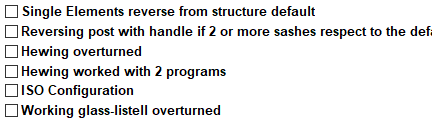




1. Single Elements reverse from structure default - On some machines this option makes it possible to start machining on the opposite side to the default one
2. Reversing post with handle if 2 or more sashes respect to the default - On some machines this option makes it possible to start machining on post with handle on the opposite side to the default one
3. Hewing overturned - This option enables the production of an inverted sash for hewing
2. Reversing post with handle if 2 or more sashes respect to the default - On some machines this option makes it possible to start machining on post with handle on the opposite side to the default one
3. Hewing overturned - This option enables the production of an inverted sash for hewing
4. Hewing worked with 2 programs - This option makes it possible to generate two separate programs for hewing working
5. Working glass-listell overturned - This option enables reverse machining for the glazing bead
5. Working glass-listell overturned - This option enables reverse machining for the glazing bead
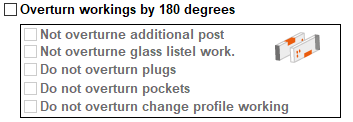
1. Overturn workings by 180 degrees - If checked, the working is rotated 180 degrees
2. Not overturne additional post - If checked, the workings is rotated 180 degrees, but additional post doesn't be overturned
3. Not overturne glass listel work - If checked, the workings is rotated 180 degrees, but glazing bead workings doesn't be overturned
2. Not overturne additional post - If checked, the workings is rotated 180 degrees, but additional post doesn't be overturned
3. Not overturne glass listel work - If checked, the workings is rotated 180 degrees, but glazing bead workings doesn't be overturned
4. Do not overturn plugs - If checked, the workings is rotated 180 degrees, but dowels workings doesn't be overturned
5. Do not overturn pockets - If checked, the workings is rotated 180 degrees, but pockets workings doesn't be overturned
6. Do not overturn change profile working - If checked, the workings is rotated 180 degrees, but change profile working doesn't be overturned
5. Do not overturn pockets - If checked, the workings is rotated 180 degrees, but pockets workings doesn't be overturned
6. Do not overturn change profile working - If checked, the workings is rotated 180 degrees, but change profile working doesn't be overturned

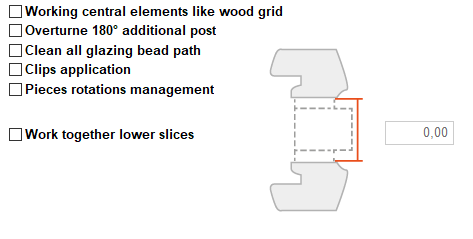
1. Working central elements like wood grid - If checked, the central elments can be produced like a wood grid
2. Overtune 180 degrees additional post - If checked, the workings doesn't rotated, but additional post can be overturned 180 degrees
3. Clean all glazing bead path - If checked, the workings clean all glazing bead paths
2. Overtune 180 degrees additional post - If checked, the workings doesn't rotated, but additional post can be overturned 180 degrees
3. Clean all glazing bead path - If checked, the workings clean all glazing bead paths
4. Clips application - If checked, clip management for aluminium fitting can be added, in which case a new position for clips must be created in the profile family and additional logic must be added to create clip workings
5. Pieces rotations managment - If checked, adds additional tabs to rotate individual construction elements
6. Work together lower slices - If checked, smaller pieces can be made on the machine, which are connected to each other giving the possibility of catching these pieces on the machine. The distance between the elements must be entered
5. Pieces rotations managment - If checked, adds additional tabs to rotate individual construction elements
6. Work together lower slices - If checked, smaller pieces can be made on the machine, which are connected to each other giving the possibility of catching these pieces on the machine. The distance between the elements must be entered